Communicate in the comments section first, then invite an expert or consultant from your own "request for advice" post. For each invitation, the recipient, points, and service rules will be confirmed beforehand.
Steps 01
Leave your questions or thoughts
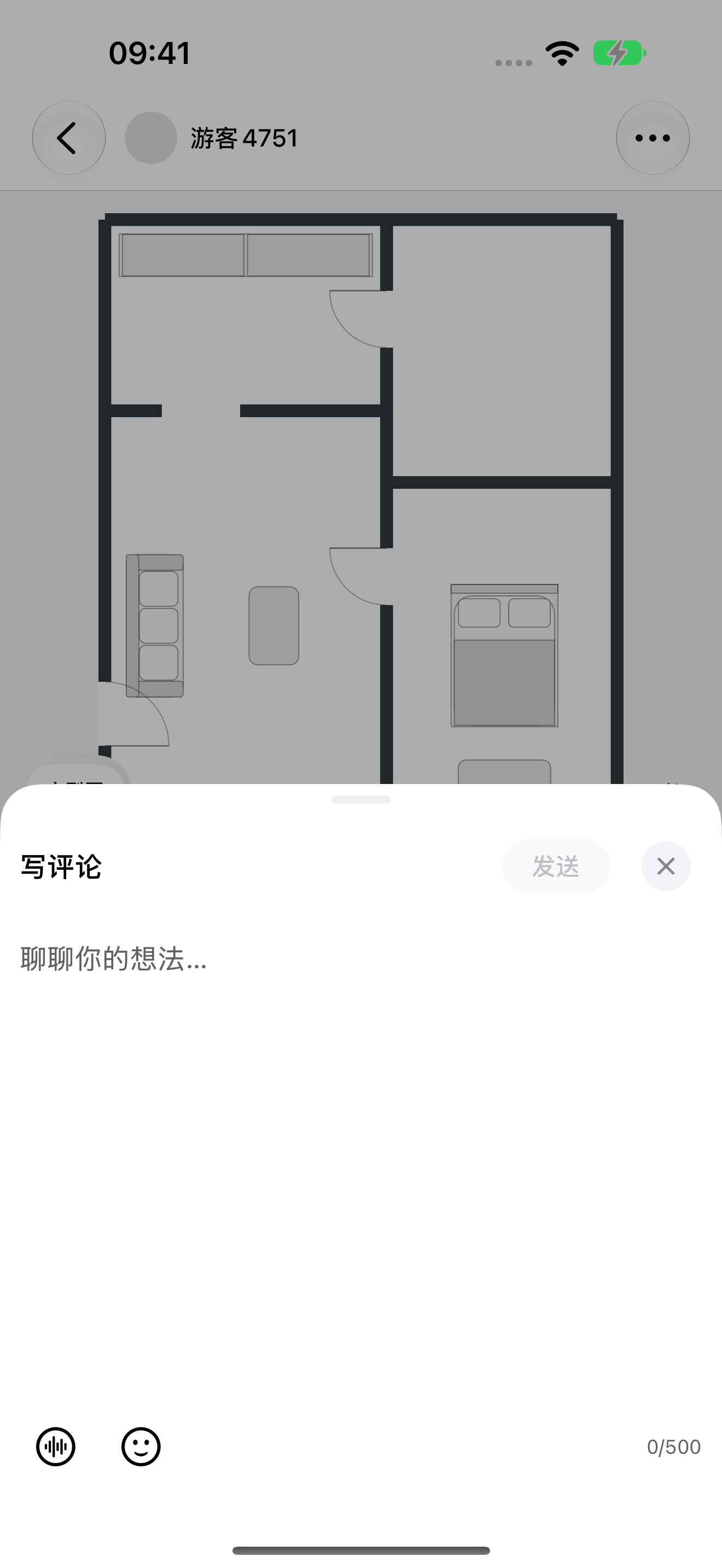
Tap "Share your thoughts..." at the bottom of a post to open the comment input area. You can communicate using either text or voice.
1
Input content
Write down specific questions or observations about the space.
2
Toggle voice mode.
Press and hold to speak; microphone permission is required for the first recording.
3
Confirm and send
The "Send" button becomes active only after valid content has been entered.
123 Tap to enlarge; the numbers in the image correspond to the operating instructions.
Steps 02
Find the right expert or consultant
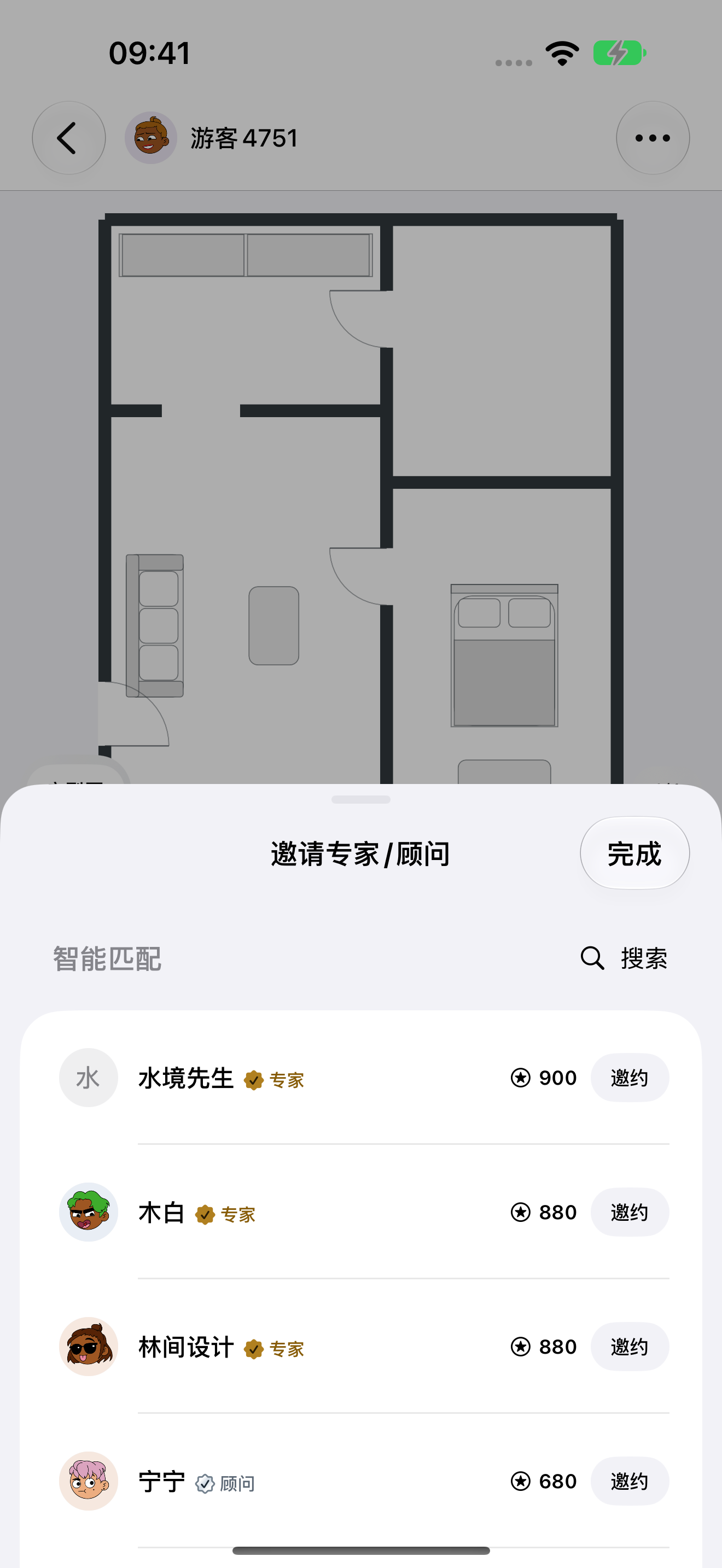
Go to your post requesting advice and click "Invite experts for advice." View smart matches or search for specific people you wish to invite.
1
View recommendations or search results
Find a professional based on your needs.
2
About the Other Party
View the professional's credentials and visit their profile page to learn more about their expertise.
3
Check points balance
Review the quote, then click "Invite."
123 Tap to enlarge; the numbers in the image correspond to the operating instructions.
Steps 03
Send request only after confirmation
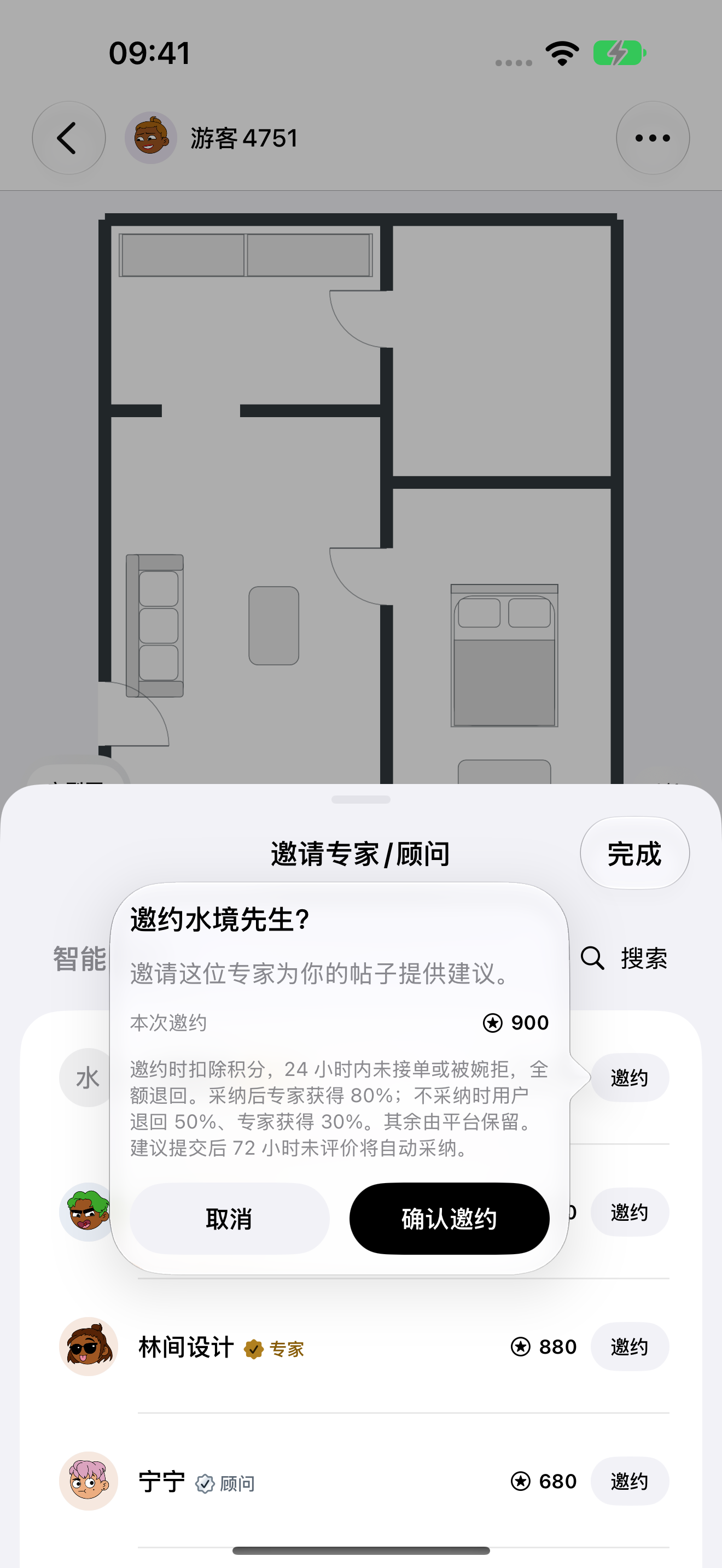
Tapping "Invite" does not submit the request immediately. First, read the confirmation window to verify the professional, the points involved, and the service settlement rules.
1
Check the cost for this transaction
The point values shown in the confirmation window are the definitive figures; the example quotes in the screenshots are for illustration only.
2
Reading Service Rules
Learn the rules regarding point deductions, timeouts, refund policies, and how suggestions are handled.
3
Confirm or Cancel
Submit after verifying the details; cancel if you do not wish to proceed.
123 Tap to enlarge; the numbers in the image correspond to the operating instructions.
Steps 04
Go to the messages page to continue the conversation
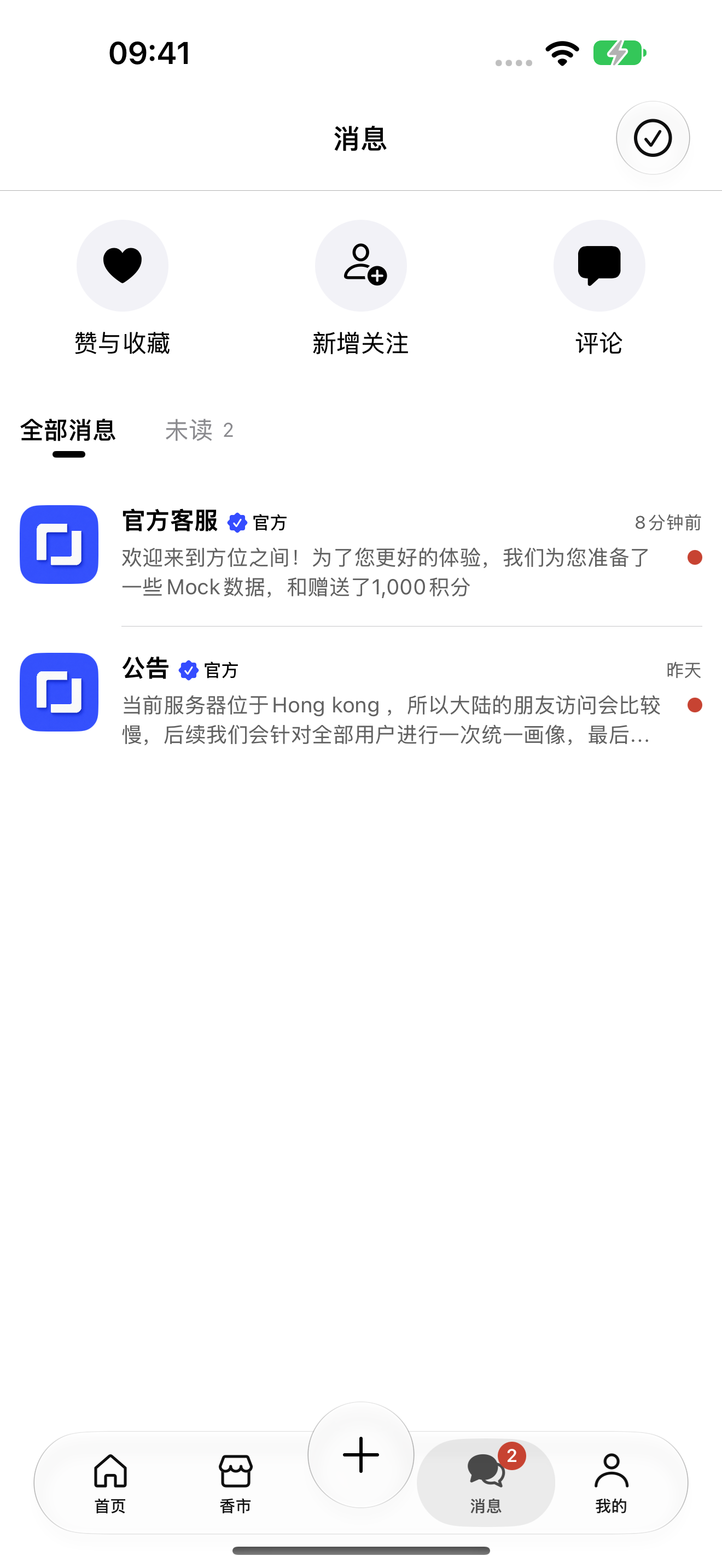
The "Messages" section at the bottom centralizes interactions and conversations; you can also return to the original post to check the status of specific invitations.
1
View comment interactions
View comments relevant to you via the entry point at the top.
2
Filter unread messages
Toggle between "All" and "Unread" to locate unprocessed updates.
12 Tap to enlarge; the numbers in the image correspond to the operating instructions.