Selecting items for your lifestyle · 4 Steps · 3 minutes Read
Purchased items and reviews
You can currently browse products and view specifications and reviews. Full ordering, payment, and post-purchase review functions are not yet available; this section introduces the access points currently in place.
Steps 01
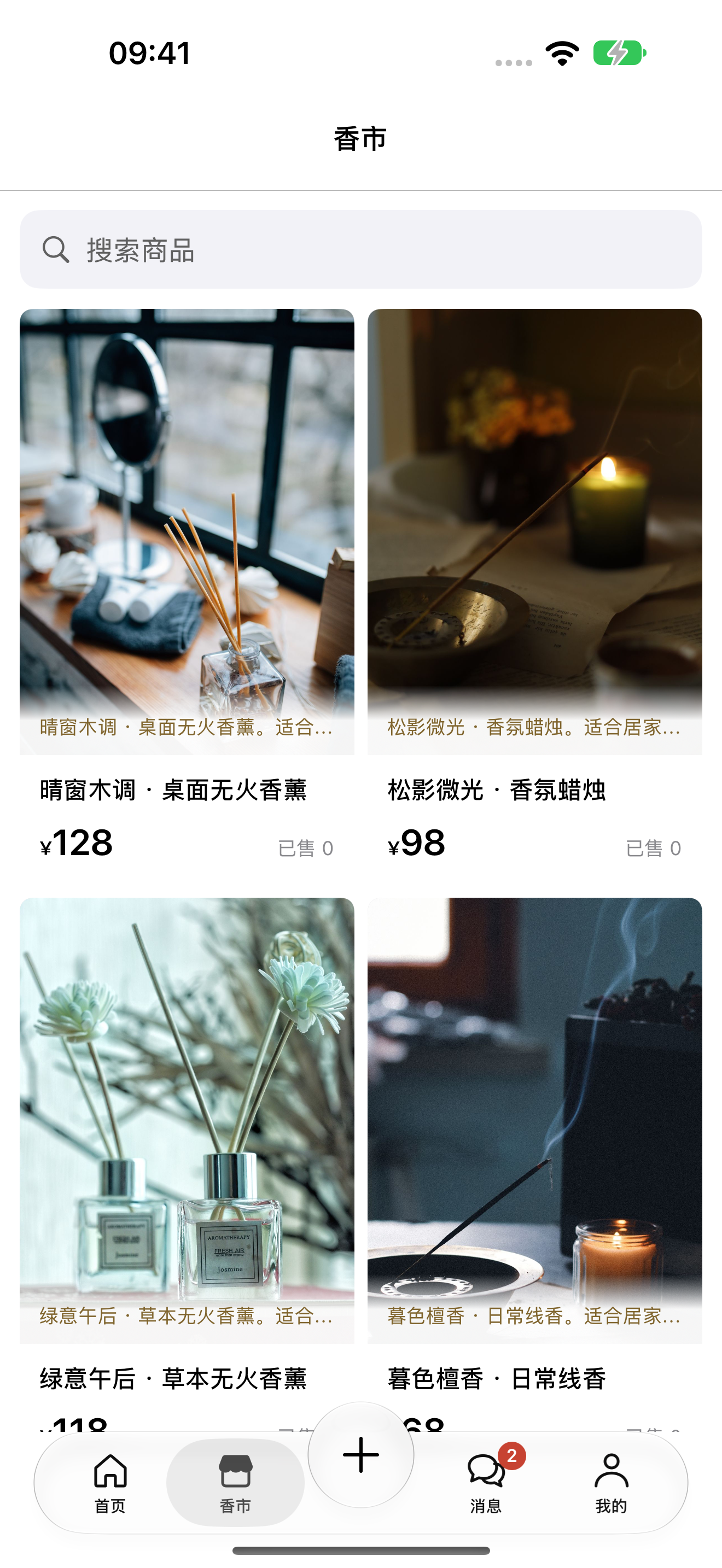
Discover suitable items in the marketplace.
Click "Marketplace" at the bottom to browse the product list, or use the search bar at the top to search by name or keyword.
1
Search for items
Enter the item name or relevant keywords.
2
Open the product
Tap a product card to view images, prices, and detailed information.
12 Tap to enlarge; the numbers in the image correspond to the operating instructions.
Steps 02
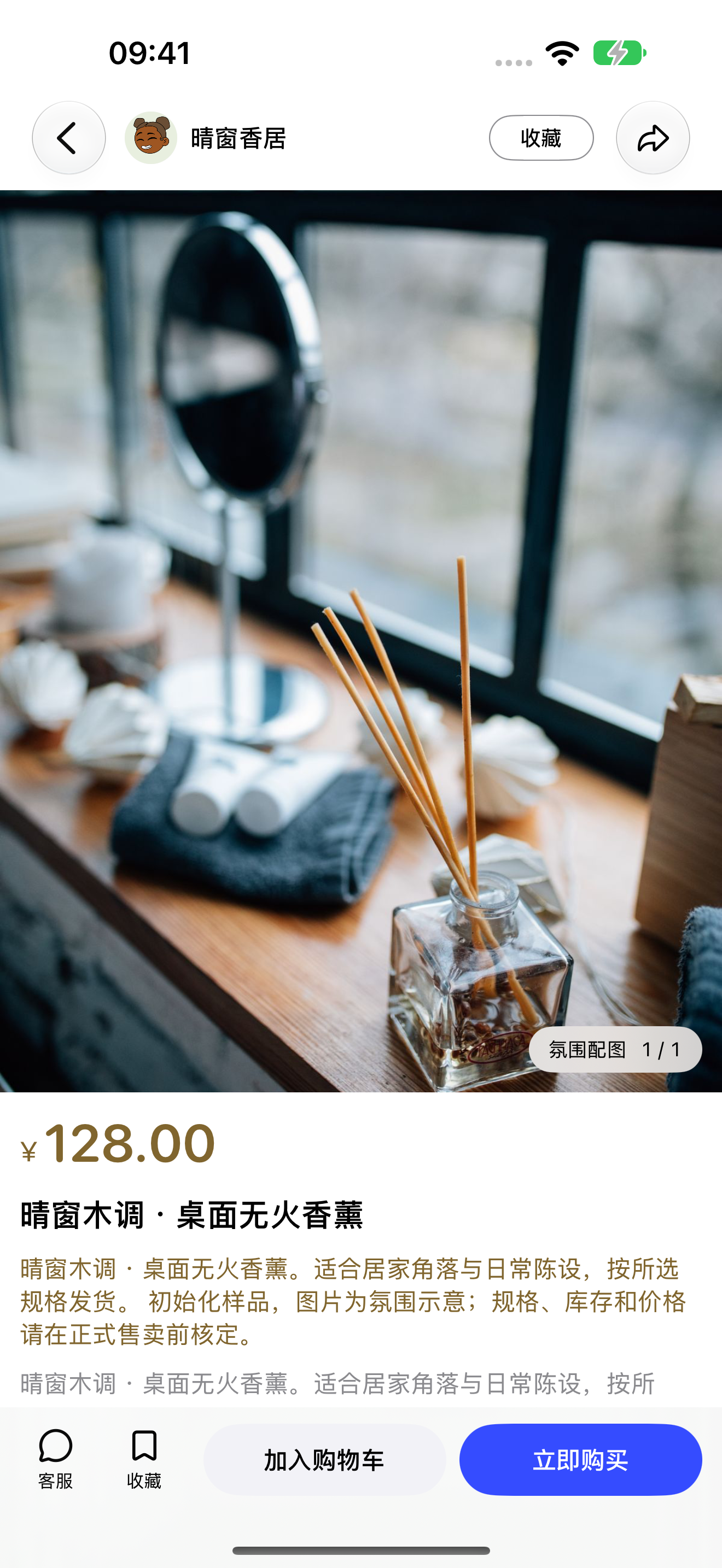
Learn about the items and the shop first
Browse images and descriptions on the product details page to learn about the store; contact the seller if you have questions about specifications or stock.
1
View product images
View images; click to enlarge.
2
About the Shop
View shop identity and the entry point to the store page.
3
Contact Merchant
Inquire about materials, dimensions, and availability first.
123 Tap to enlarge; the numbers in the image correspond to the operating instructions.
Steps 03
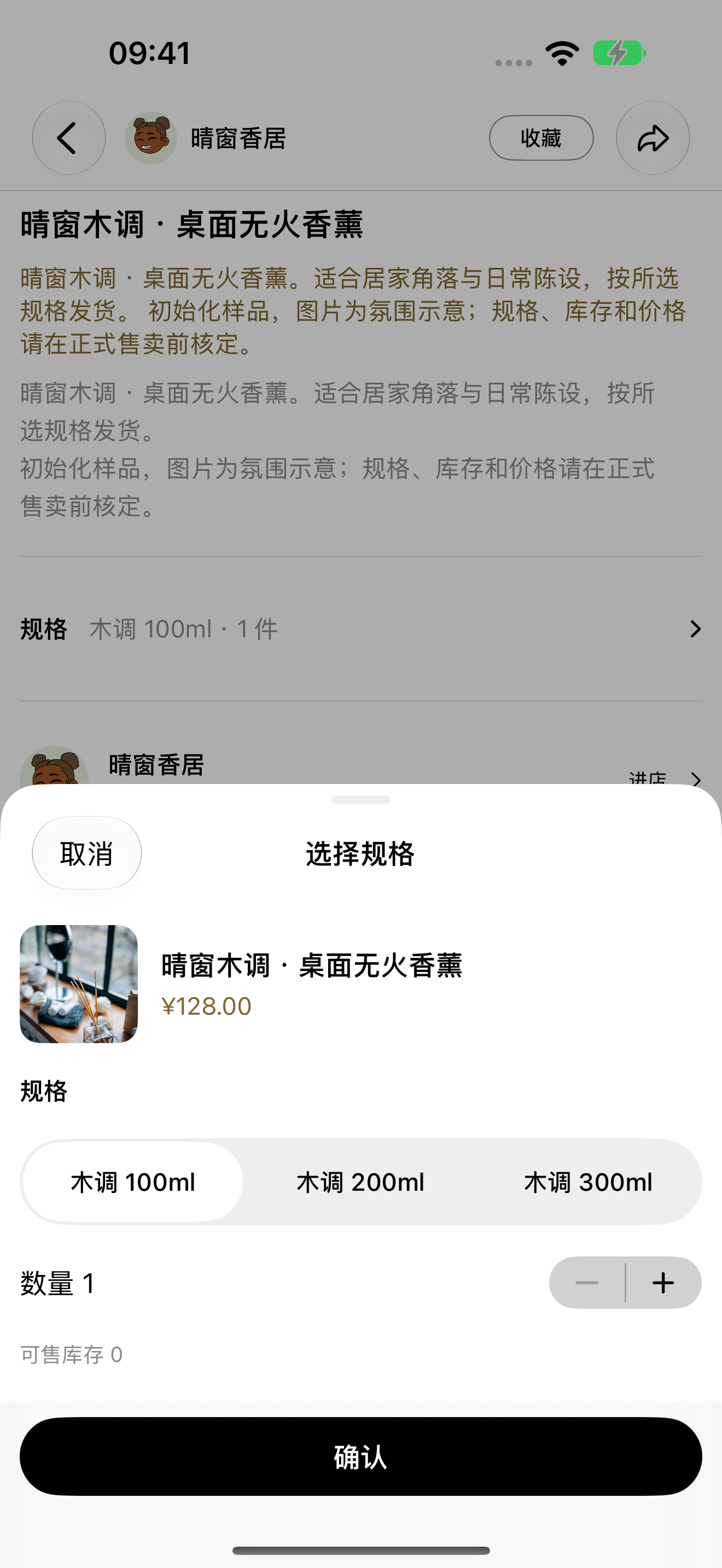
Verify specifications, quantities, and stock levels
Open the specifications menu to view prices for different capacities or styles and check availability.
1
Select specifications
Switch styles or capacities and check the selected options.
2
Adjusting quantities
Adjust the quantity using the plus and minus buttons, and keep an eye on stock levels.
3
Confirm selection
Confirming specifications does not constitute placing an order or making a payment.
123 Tap to enlarge; the numbers in the image correspond to the operating instructions.
Steps 04
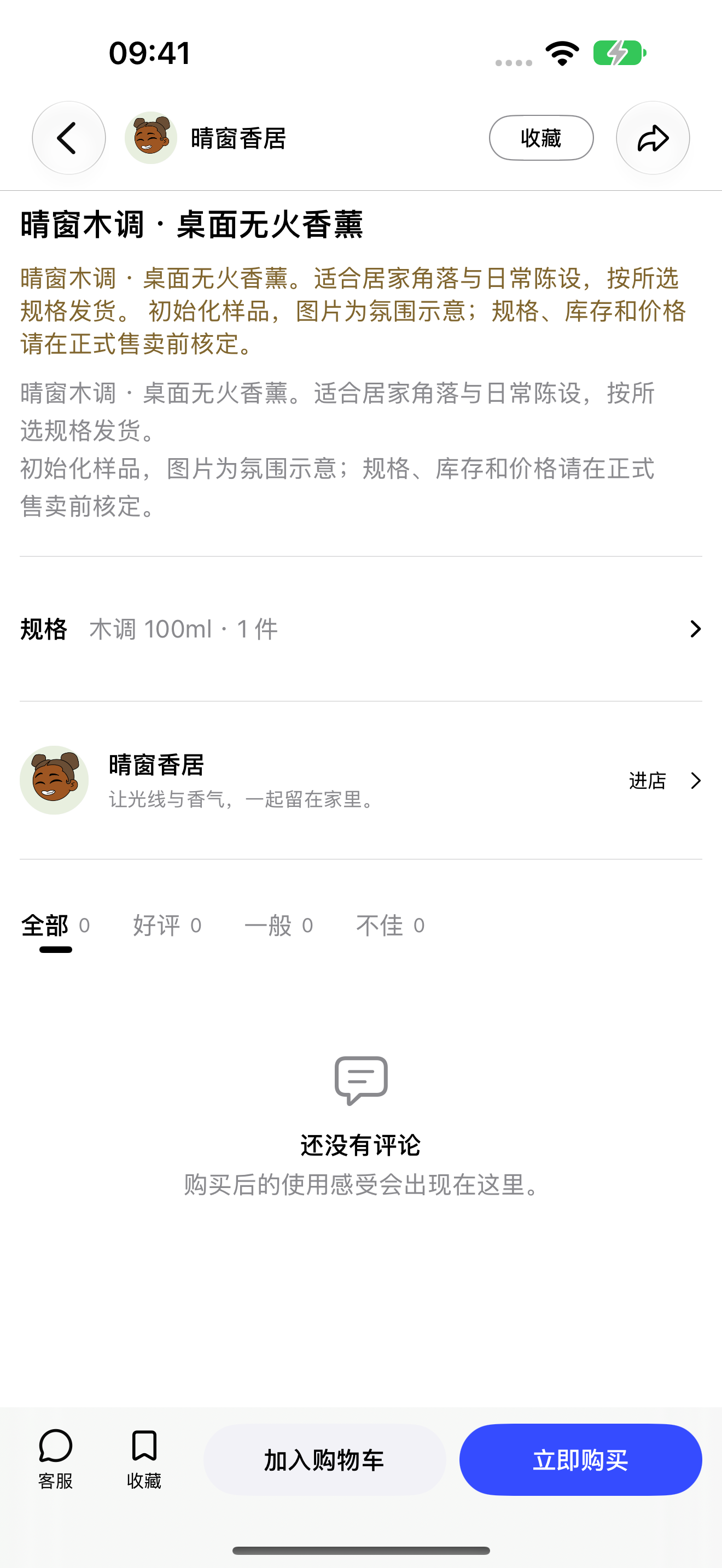
Check reviews to decide if it's a good fit
Scroll down to the reviews section of the product details page; filter by "All," "Positive," "Average," or "Negative." An empty state is displayed when there are no reviews.
1
Filter reviews
Various filter options help you understand existing feedback.
2
Identify empty state
The absence of reviews does not imply that the item has already received positive feedback.
12 Tap to enlarge; the numbers in the image correspond to the operating instructions.